Every few months another big site reports that its password database was stolen, and every time the advice is the same: use a longer password, don't reuse it, turn on two-factor authentication. It's good advice, and it's also an admission that passwords are a bad design. A passkey is the replacement the industry finally agreed on — and if you own an iPhone, iPad, or Mac, you already have everything you need to use one.
Your phone is the key
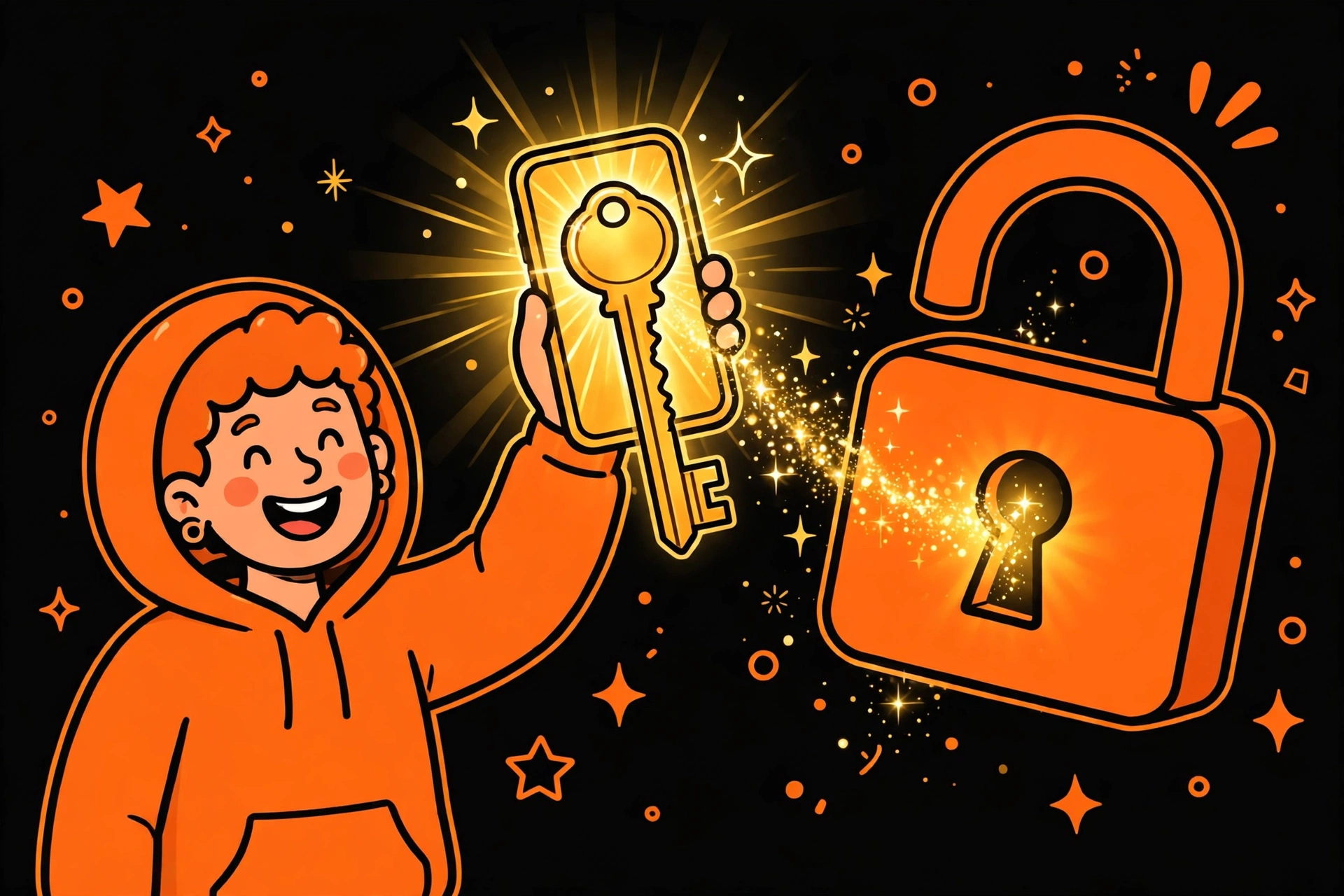
When you create a passkey for a site, your device generates a pair of cryptographic keys. The private key never leaves your device — on Apple hardware it lives in the Secure Enclave, the same chip that guards your fingerprint and face data. The public key goes to the site. Signing in means your device proves it holds the private key, and it asks you to confirm with Face ID, Touch ID, or your device passcode first. Nothing you know gets sent anywhere. There is no password to remember, type, or accidentally paste into the wrong box.
Why phishing stops working
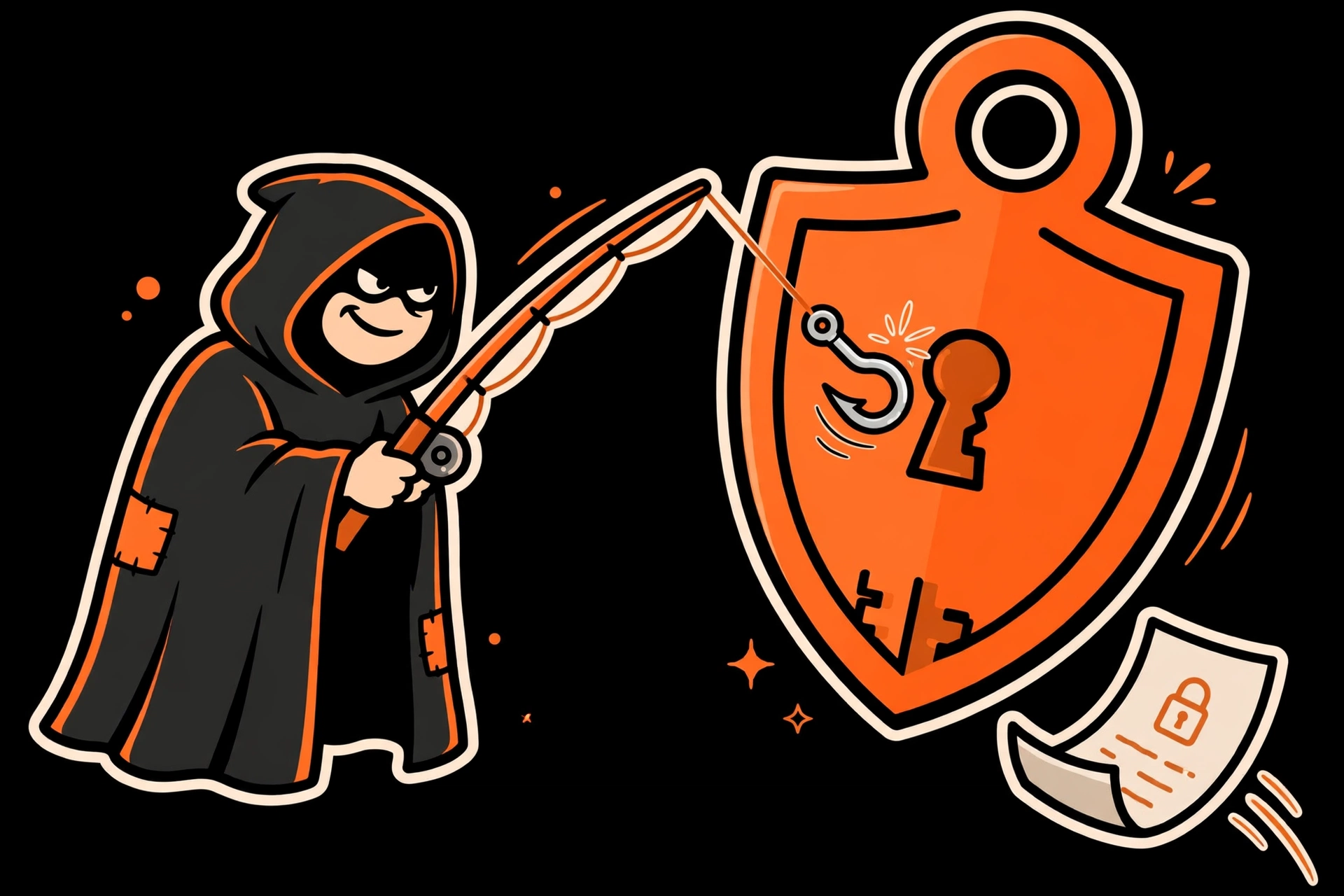
This is the part that matters most. A passkey is bound to the real site's web address. If a phishing email sends you to a lookalike login page, your device simply won't offer the passkey — the address doesn't match, so there's nothing to hand over. A fake page can't trick you into typing a secret, because there is no secret to type, and it can't replay one either, because the sign-in is a fresh cryptographic challenge each time. On the site's side there's no password database to steal, only public keys, which are useless to an attacker on their own. That's why security people are so enthusiastic: passkeys don't just make phishing harder, they remove the thing phishing steals.
One key, every Apple device
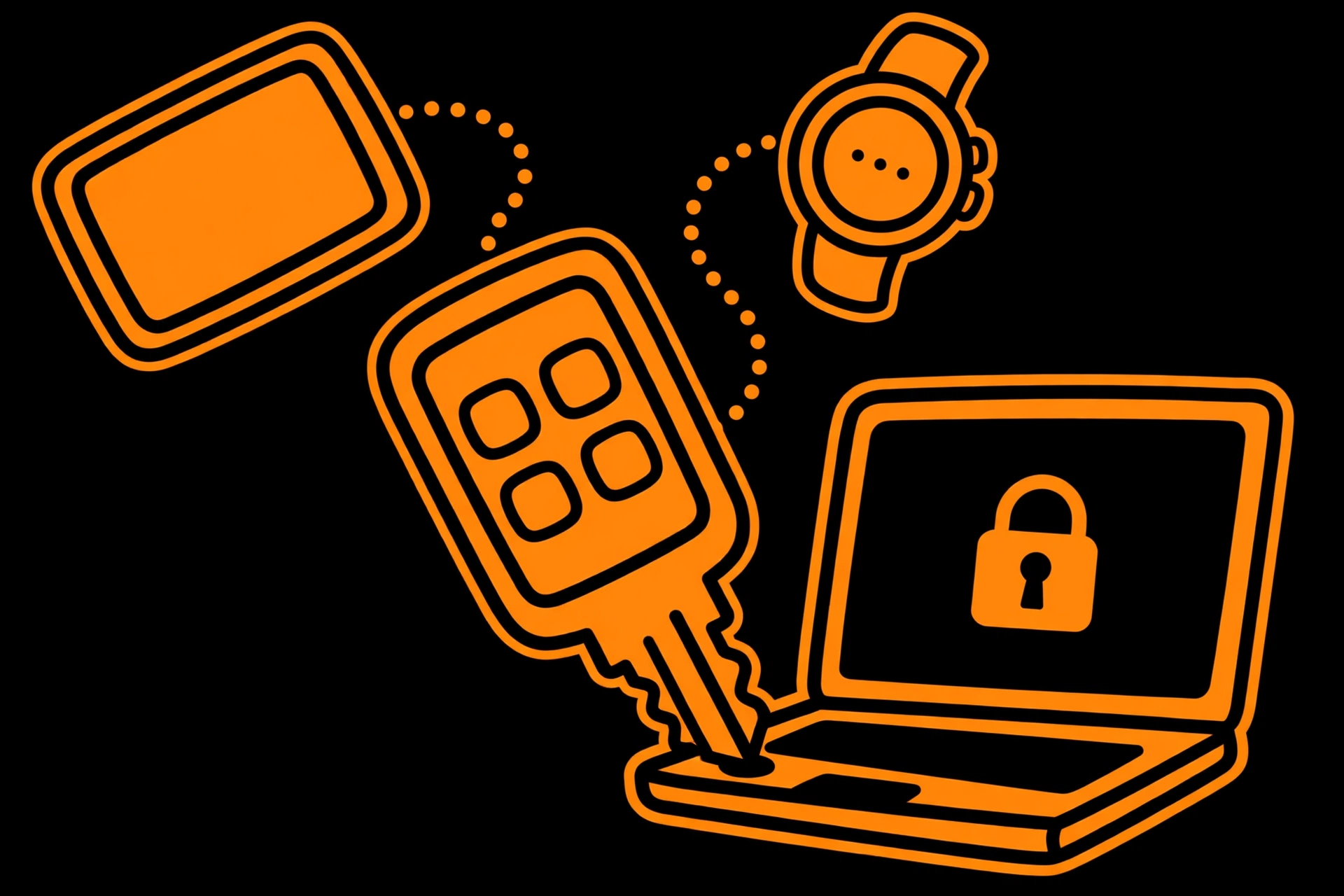
Passkeys you create on an iPhone are stored in iCloud Keychain and sync to your iPad and Mac, as long as they're signed into the same Apple Account. Create one on your phone, and it's waiting on your Mac when you need it. Signing in on a device that doesn't have the passkey works too: the site shows a QR code, you scan it with your iPhone, confirm with Face ID, and you're in — the private key still never leaves your phone. If you ever need to sign in on a friend's computer or a Windows PC, that's the route.
Try one today
Pick a site that supports passkeys — Google, Apple, GitHub, and Amazon are all on board — and sign in with Safari on your iPhone. When the site offers to save a passkey, say yes and confirm with Face ID. That's it; next time you sign in, you'll get a Face ID prompt instead of a password box. You can see and manage what you've saved in the Passwords app (iOS 18 and later, macOS Sequoia and later) or under Settings → Passwords on older versions.
Two honest caveats before you go all in. First, not every site supports passkeys yet, so your password manager still earns its keep for a while. Second, your passkeys are only as recoverable as your Apple Account: if you lost every device at once, getting back in depends on your account recovery options, so make sure those are set up — a recovery contact or recovery key — before you need them. Get those two things right, and the password era is something you can mostly leave behind.